How to Use the Properties Section in TenantBooks
The Properties section in TenantBooks lets you easily manage all your rental properties, track details, and keep everything organized. This guide will help you get the most out of the Properties feature.
1. Properties Overview
-
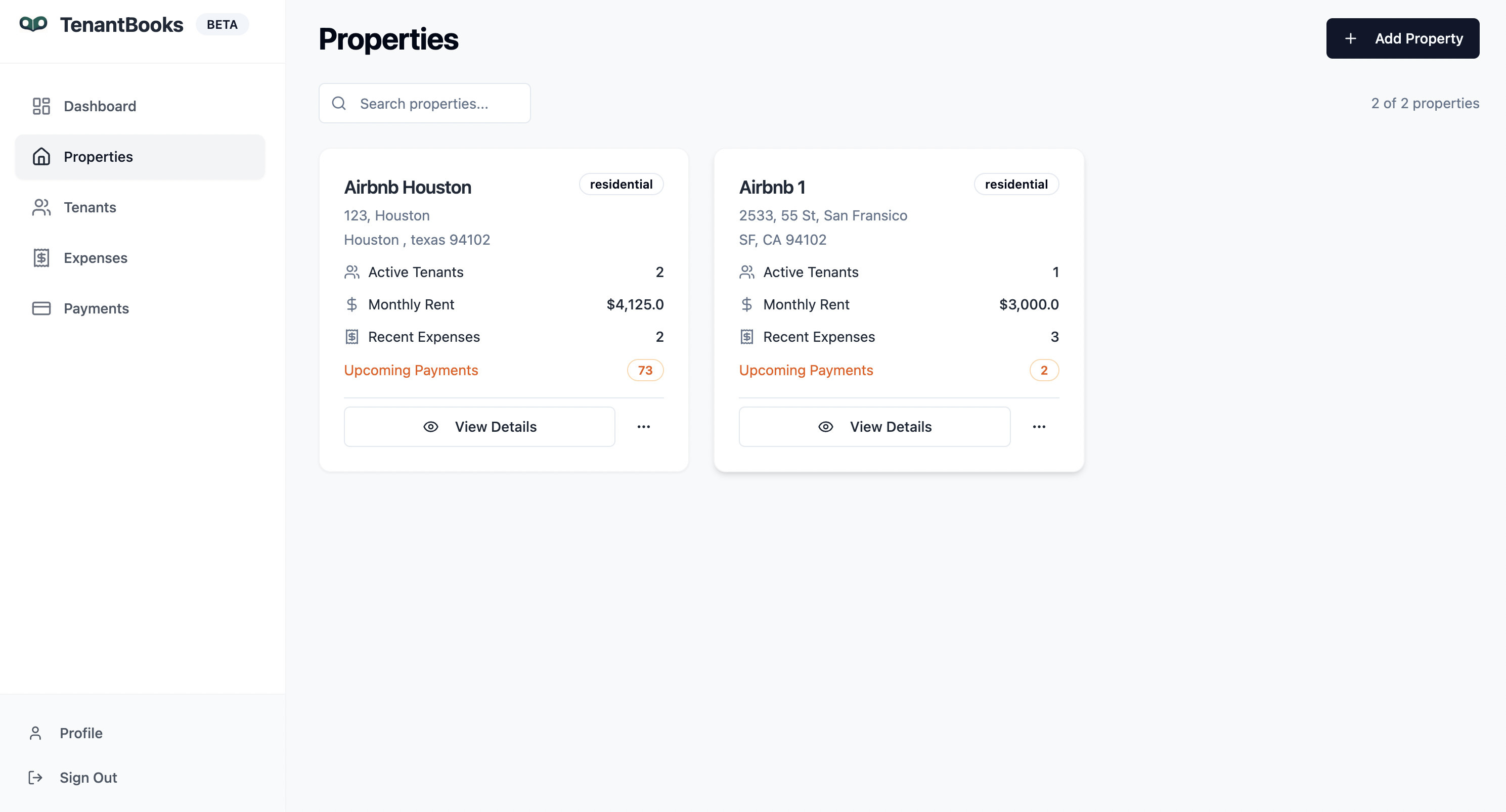
Property Cards: Each property is displayed as a card showing:
-
Property name and address
-
Property type (e.g., Residential)
-
Number of active tenants
-
Monthly rent total
-
Recent expenses
-
Count of upcoming payments
-
-
Search Bar: Quickly find a property by typing its name or address.
-
Add Property Button: Click the "+ Add Property" button to create a new property.
2. Adding a New Property
-
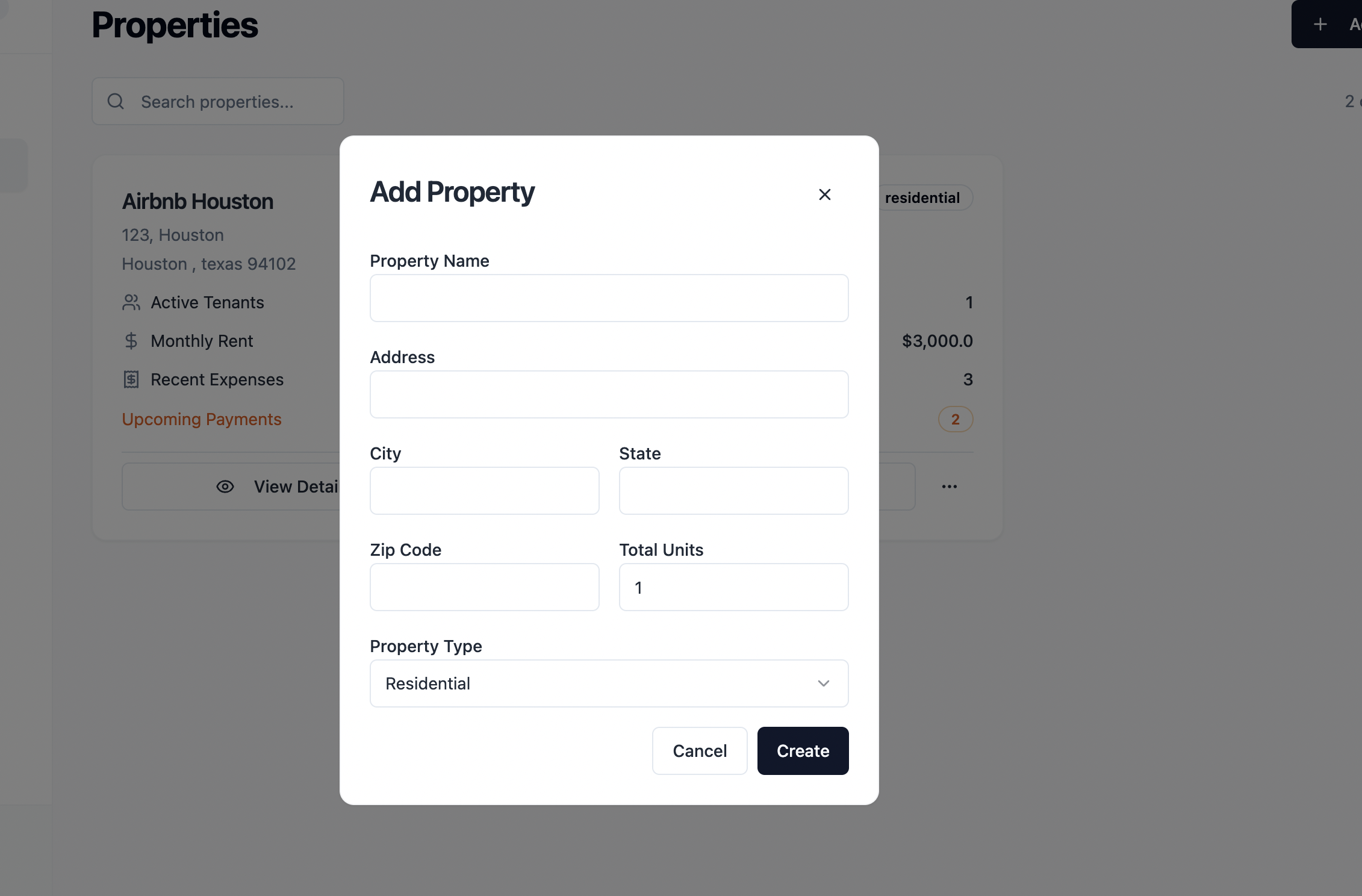
Click Add Property in the top right.
-
Fill in the form with:
-
Property Name
-
Address
-
City, State, Zip Code
-
Total Units (number of rentable units)
-
Property Type (e.g., Residential)
-
-
Click Create to add the property to your list.
3. Viewing Property Details
-
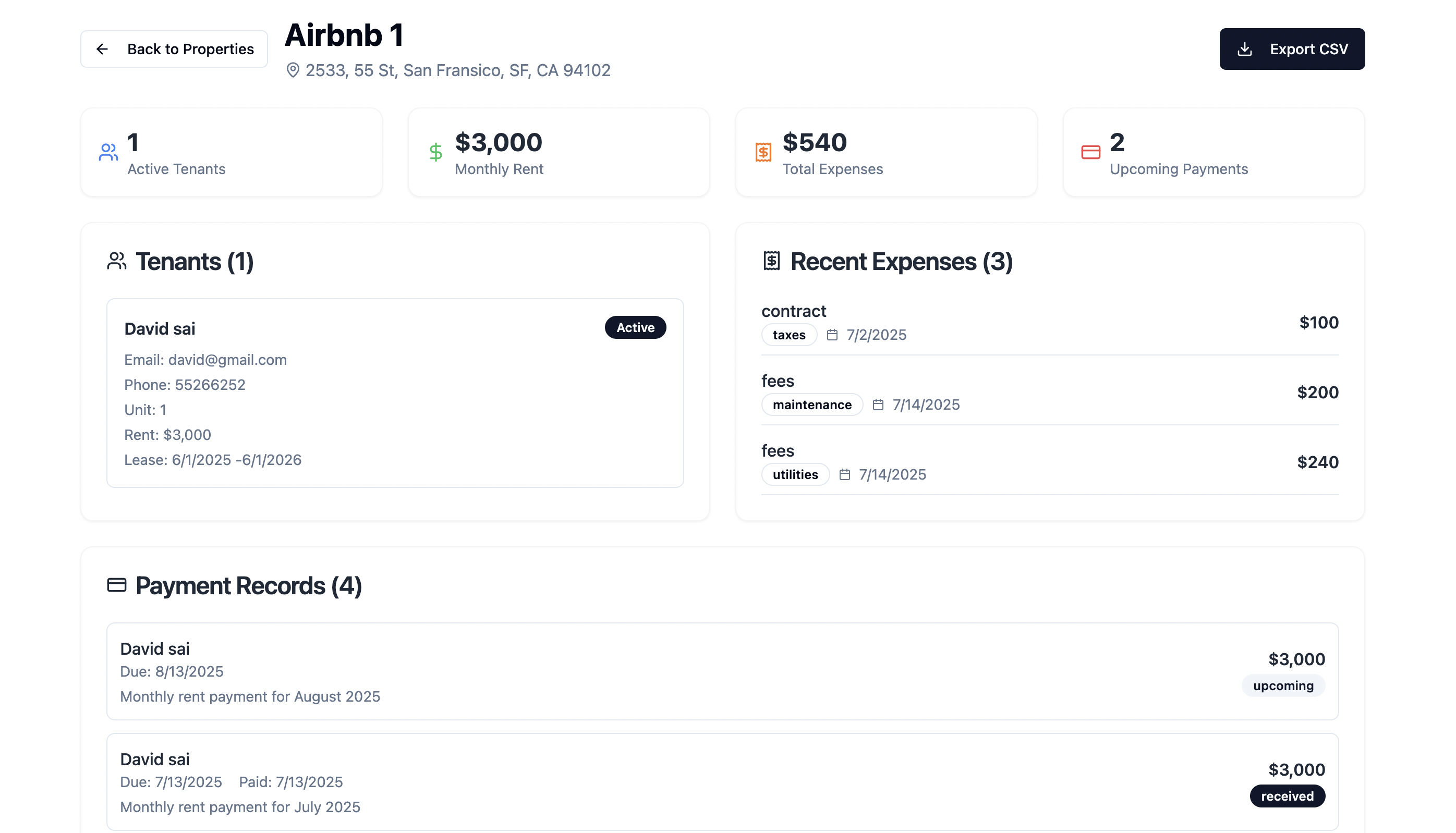
Click View Details on any property card to see:
-
Active Tenants: List of current tenants, their contact info, unit, rent amount, and lease dates.
-
Recent Expenses: Breakdown of expenses by category, date, and amount.
-
Payment Records: History of rent payments, including due dates, amounts, and payment status (upcoming, received).
-
Upcoming Payments: List of rent payments due soon for that property.
-
-
You can also Export CSV for property details, tenants, or payment records for easy reporting.
4. Editing or Deleting Properties
-
Use the menu (three dots) on each property card to edit or delete property details as needed.
-
Update information such as address, units, or property type to keep records accurate.
5. Tips for Efficient Property Management
-
Regularly update property details to reflect changes in units, tenants, or expenses.
-
Monitor upcoming payments and recent expenses for each property to stay on top of your finances.
-
Export data periodically for backup or sharing with accountants.
-
Use the search function to quickly navigate large portfolios.
By following these steps, you can efficiently manage all your rental properties in TenantBooks, ensuring organized records and streamlined operations.