Overview of the Expenses
The Expenses section in TenantBooks allows you to track, manage, and organize all property-related expenses in one place. This guide will help you make the most of the Expenses feature.
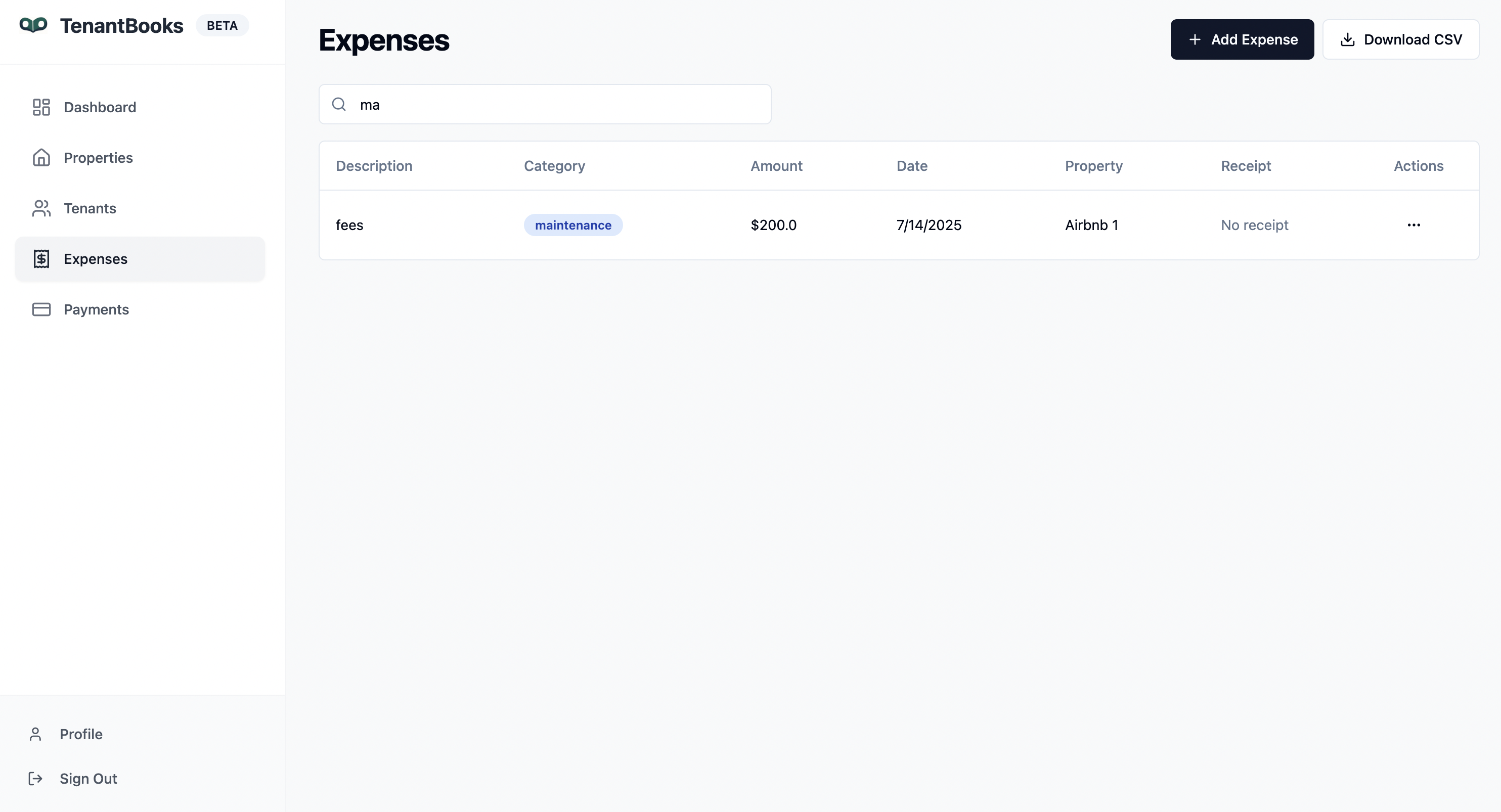
1. Expenses Overview
-
Expenses Table: View all expenses in a clear table format, displaying:
-
Description
-
Category (e.g., Maintenance, Utilities, Legal, Taxes)
-
Amount
-
Date
-
Associated Property
-
Receipt status
-
-
Search Bar: Quickly filter expenses by typing in a description, category, or property name.
-
Add Expense Button: Click "+ Add Expense" to record a new expense.
-
Download CSV: Export all expense records for reporting or accounting.
2. Adding a New Expense
-
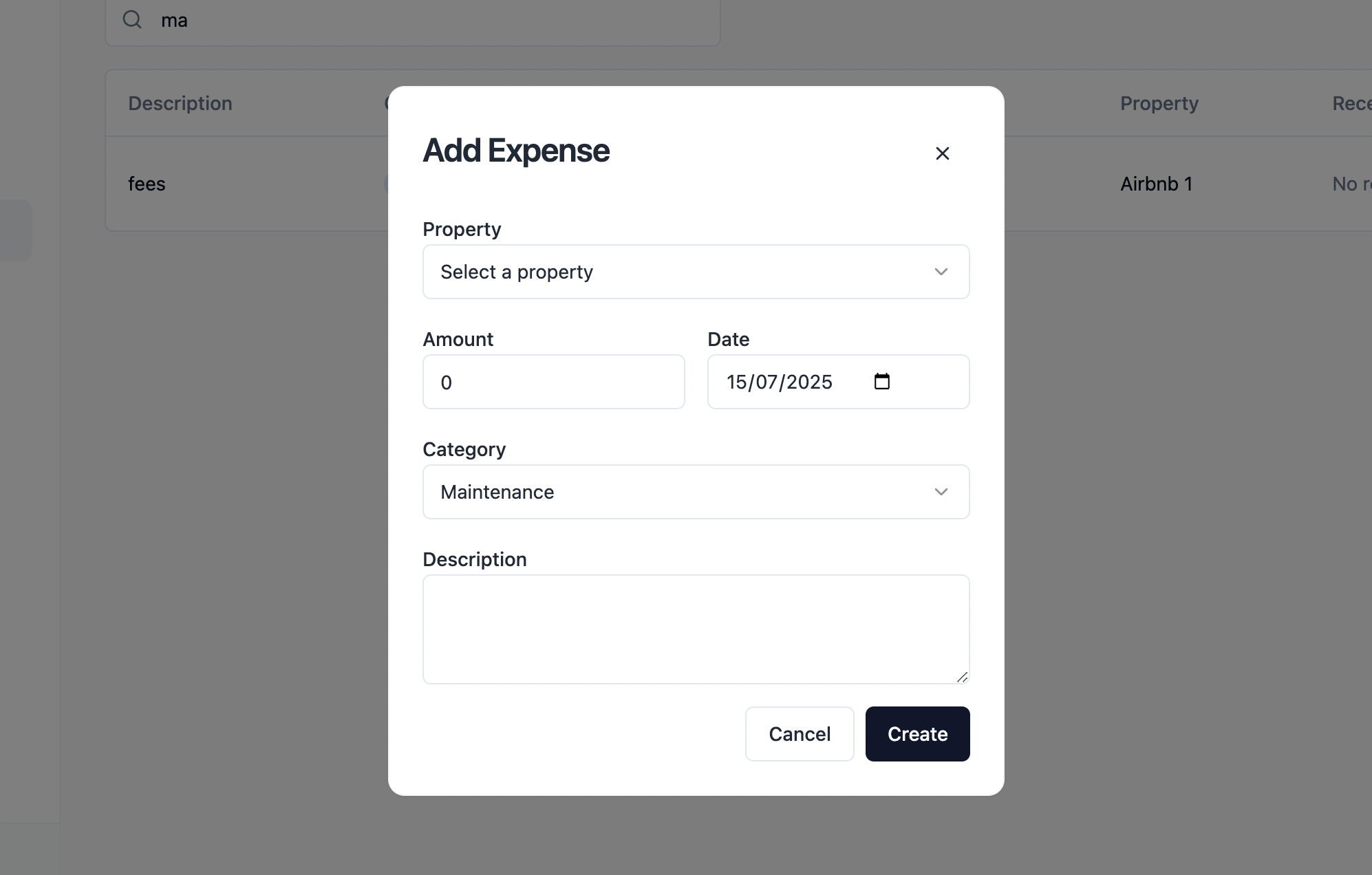
Click Add Expense in the top right.
-
Fill in the form with:
-
Property: Select the property the expense is associated with.
-
Amount: Enter the expense amount.
-
Date: Choose the date of the expense.
-
Category: Pick a category (Maintenance, Utilities, Taxes, Insurance, Repairs, Advertising, Legal, Management, Other).
-
Description: Add details about the expense.
-
-
Click Create to save the expense.
3. Managing Expenses
-
Edit or Delete: Use the actions menu (three dots) next to each expense to edit or remove entries as needed.
-
Receipt Tracking: See whether a receipt is attached for each expense. (Currently, "No receipt" is shown if none is uploaded.)
-
Search & Filter: Use the search bar to quickly find specific expenses by keyword or category.
4. Exporting Expenses
- Click Download CSV to export all expense data for further analysis or sharing with your accountant.
5. Tips for Efficient Expense Management
-
Categorize expenses accurately for better financial tracking and reporting.
-
Attach receipts when available to keep your records complete.
-
Regularly review expenses to monitor spending and identify potential savings.
-
Export expense data periodically for backups or tax preparation.
-
Use search and filters to quickly locate expenses by property, category, or date.