Overview of the Payments
The Payments section in TenantBooks makes it easy to track, record, and manage all rent payments from your tenants. This guide will help you efficiently use the Payments feature to stay on top of your rental income.
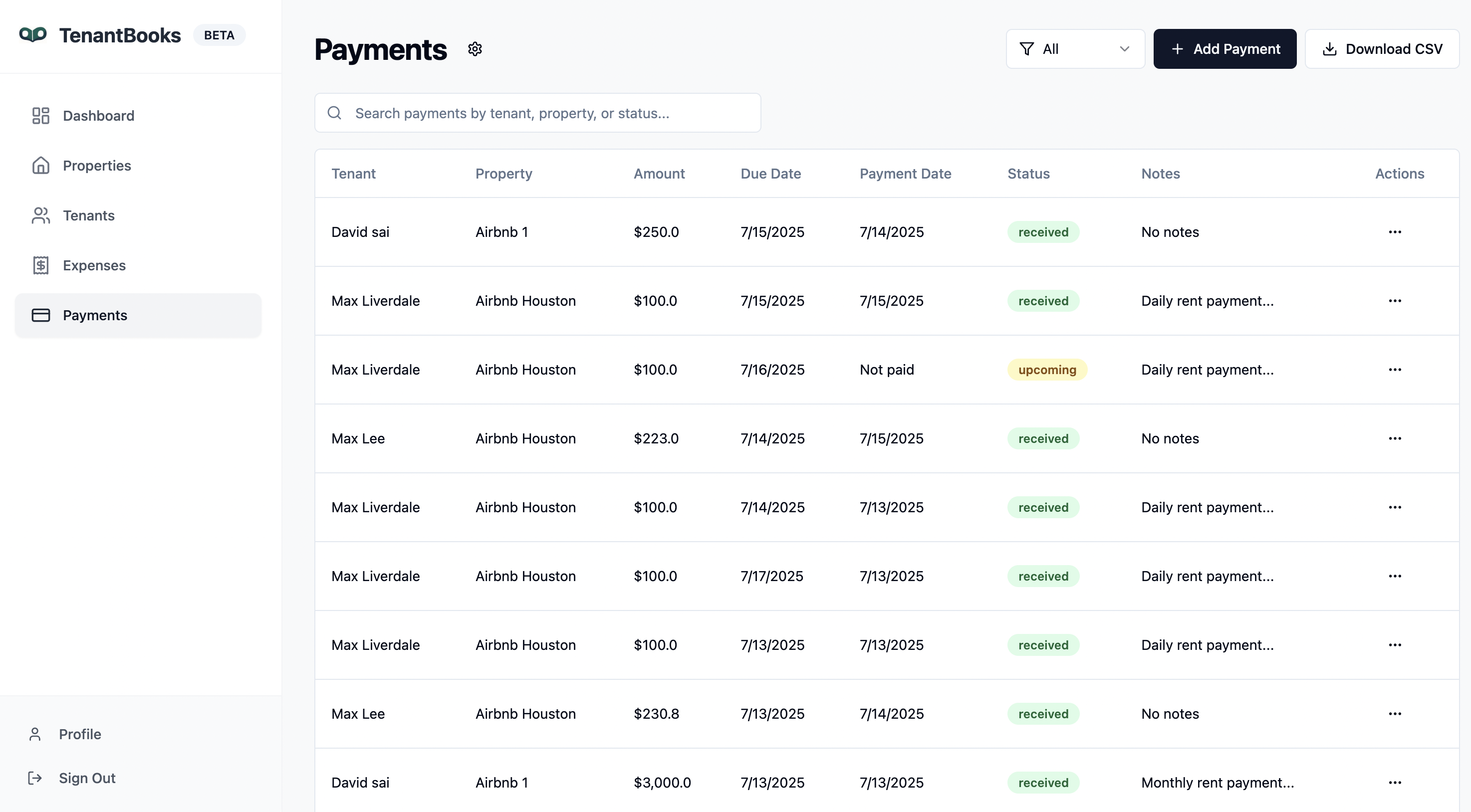
1. Payments Overview
-
Payments Table: View all payments in a table format, showing:
-
Tenant name
-
Property
-
Payment amount
-
Due date
-
Payment date
-
Status (Received, Upcoming, Overdue)
-
Notes
-
-
Search Bar: Quickly filter payments by tenant, property, or status.
-
Add Payment Button: Click "+ Add Payment" to record a new payment.
-
Download CSV: Export all payment records for reporting or accounting.
2. Adding a New Payment
-
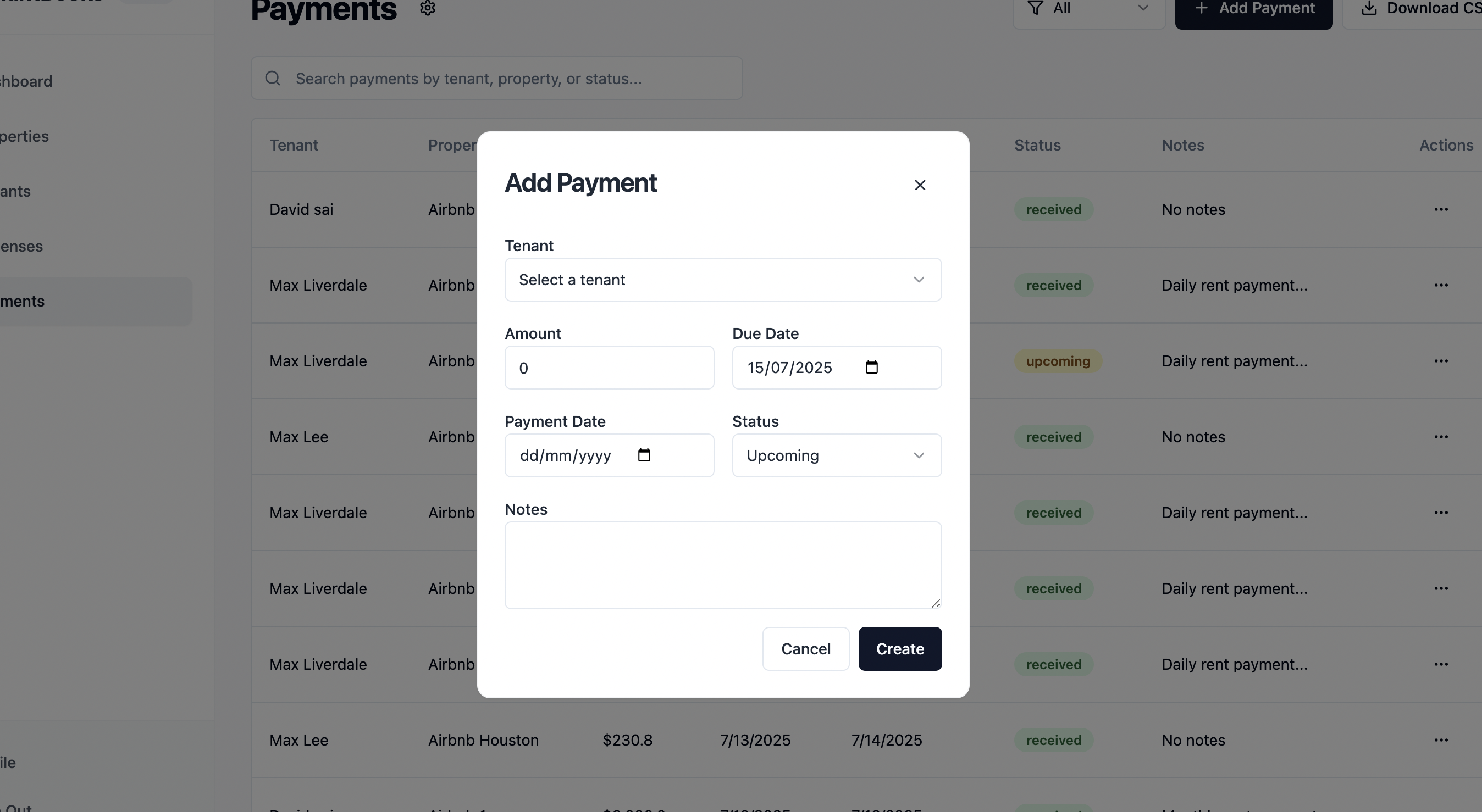
Click + Add Payment in the top right.
-
Fill in the form with:
-
Tenant: Select the tenant from the dropdown list.
-
Amount: Enter the payment amount.
-
Due Date: Choose the rent due date.
-
Payment Date: Enter the date the payment was received (leave blank if not yet paid).
-
Status: Set as Upcoming, Received, or Overdue.
-
Notes: Add any relevant notes (e.g., “Daily rent payment”).
-
-
Click Create to add the payment record.
3. Managing Payments
-
Mark as Received: Update the status of a payment to "Received" once payment is collected.
-
Edit or Delete: Use the actions menu (three dots) next to each payment to edit or remove entries as needed.
-
Status Indicators: Instantly see which payments are upcoming, overdue, or received with clear color-coded labels.
-
Notes: Add or review notes for each payment to keep track of payment details or issues.
4. Exporting Payments
- Click Download CSV to export all payment data for further analysis or sharing with your accountant.
5. Tips for Efficient Payment Management
-
Regularly update payment statuses to reflect the most current information.
-
Use the search and filter tools to quickly locate specific payments by tenant, property, or status.
-
Add notes for partial payments, late fees, or special arrangements to maintain complete records.
-
Export payment data periodically for backups or financial reporting.
-
Monitor upcoming and overdue payments to follow up with tenants and maintain cash flow.